Showing posts with label ُBasics Excel. Show all posts

Saving Excel Sheet


 While creating a workbook you should save it regularly to make sure, in the event of  a system problem, you do not lose your information. Excel saves the workbook, or, if it is the first time, you are saving the workbook, the Save As dialog box opens
*To save your workbook:

Dealing with Excel Worksheets

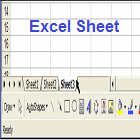
  1-Activating a Worksheet Assume that you are working in a workbook   with  more than one sheet and that you want tomove from Sheet1 to Sheet3 to enter some data there. To do this, simply click Sheet3 tab atthe bottom of the workbook. 
 2-Selecting Worksheets If you select more than one sheet, Microsoft Excel repeats the changes you make to the active sheet on all other selected sheets. These changes may replace data on other sheets.

What is a Workbook?


 * In Microsoft Excel, a workbook is the file in which you work and store your data. Because each workbook can contain many sheets, you can organize various kinds of related information in a single file. As you see in the above figure, the Workbook is named Book1 (look at the Title bar). Book1 is the first thing you see when you start Excel XP. Book1 is an Excel-given name. If you do some work, you have to name it differently and save it if you want to be able to retrieve it in the future.

Hiding the Office Assistant


* To hide the office assistant:

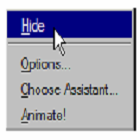
 Right-click on the Office Assistant and select Hide from the menu.
 Using Help without the Office Assistant 
  To use help without the office assistant : 

Microsoft Excel XP Help System


MS Excel XP offers a rich and enhanced help system with different options that can answer all your questions. Part of this help system is interactive where you get into a question answer dialog.
Accessing Help  1. Click the “Help” option from the Menu Bar, the “Help” submenu will appear.

The Main Microsoft Excel XP Window


When you start Excel XP, the following screen appears which is, as you see, typical of other Window’s screens: 
The following illustration identifies each part of MS Excel XP screen: